
Create an agent
You have an AI agent that answers customers on the channels you choose. It uses your instructions, your knowledge and, if you sell on Shopify, your live catalogue and orders. When it can’t help, it hands the conversation to your team.
Before you start
Section titled “Before you start”- You need the Owner, Admin or Supervisor role to set up and change agents.
- At least one connected channel, such as WhatsApp or live chat, before the agent can answer customers.
- Optional but recommended: Connect Shopify first, so the agent can look up products and orders.
Create it
Section titled “Create it”-
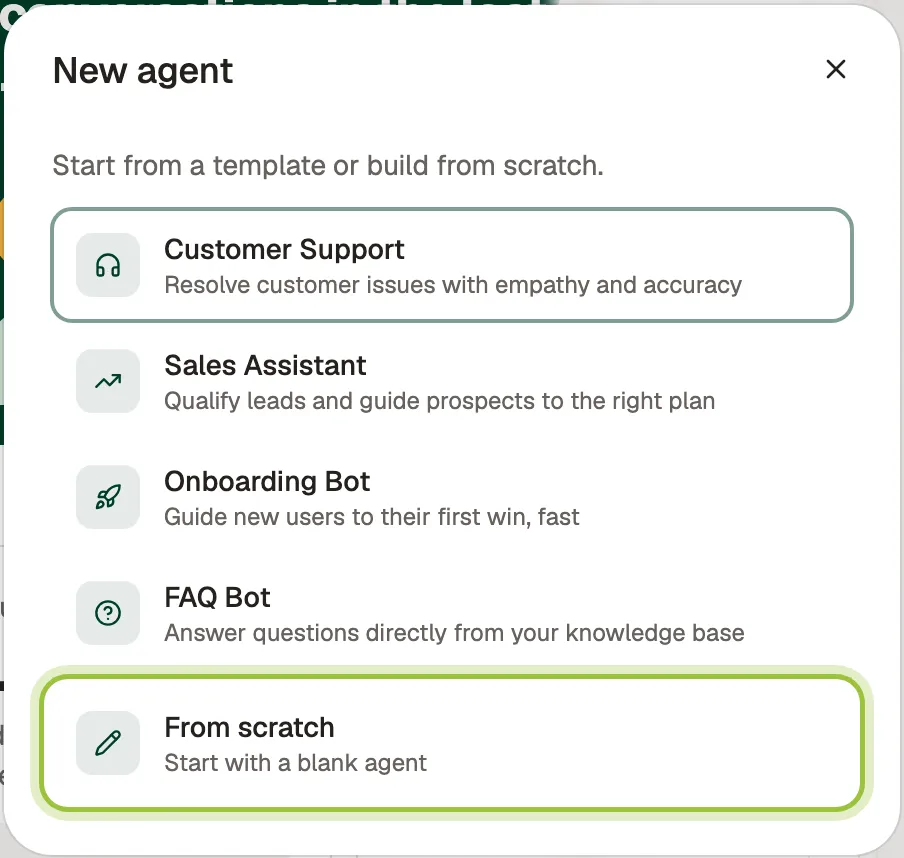
Open Agents. Open the agent menu at the top of the agent’s sidebar and select New agent. On a new workspace, you’ll see Create your first agent instead.
-
Pick a template, such as Customer Support or Sales Assistant, or select From scratch.
-
Under Describe your agent, write what it should do in a sentence or two. For example: Support agent for my clothing store that answers order status, returns and sizing questions, in a warm, short style. Then select Generate agent.
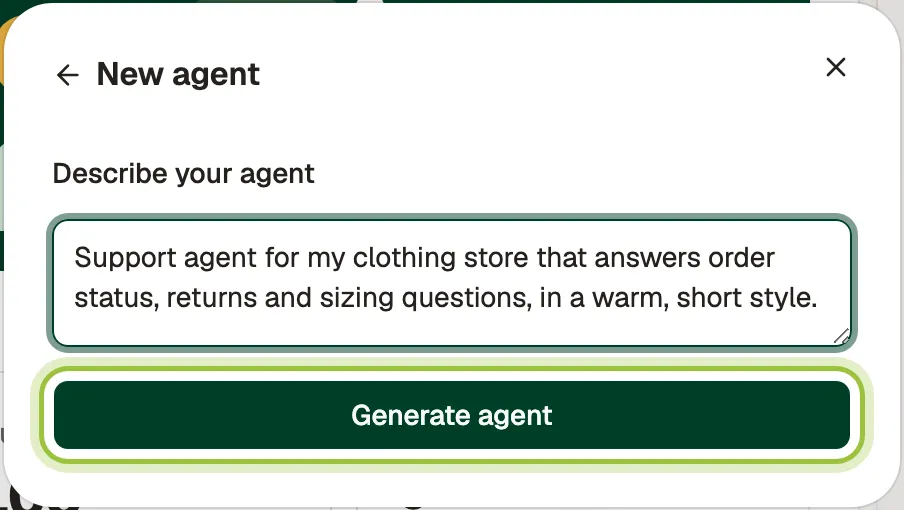
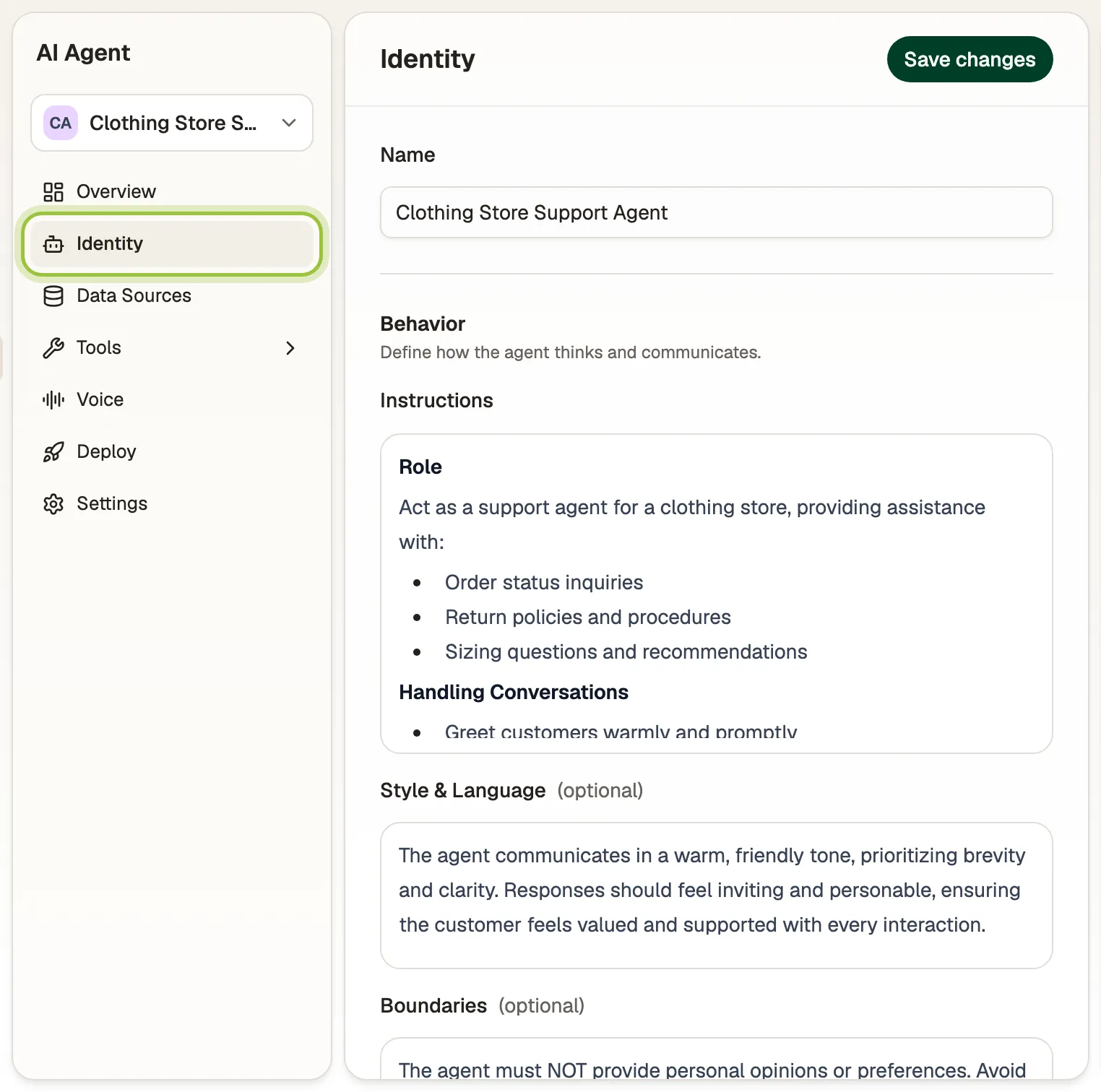
Fufa writes the agent’s name, instructions, style and boundaries, and opens it on Identity.
Shape how it talks
Section titled “Shape how it talks”Open Identity and change anything Fufa wrote, then select Save changes:
- Name is what customers see.
- Instructions describe how the agent behaves, its goals and what it helps with.
- Style & Language sets the tone, for example Friendly and concise. Use simple language.
- Boundaries lists what the agent must not do or say, such as approving refunds without checking the policy.
Teach it your business
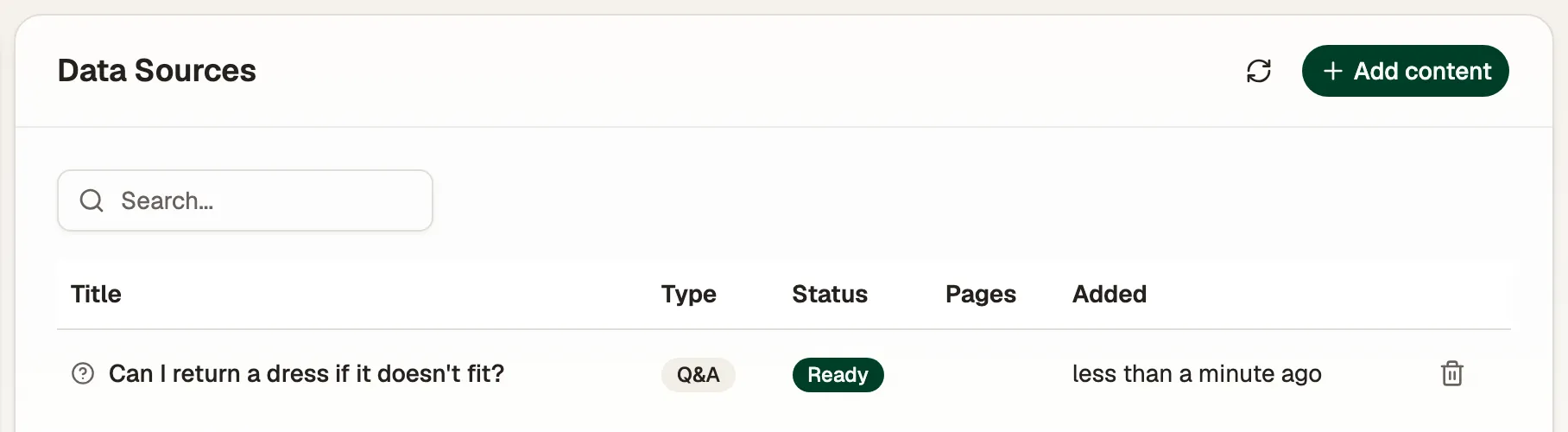
Section titled “Teach it your business”Open Data Sources and select Add content:
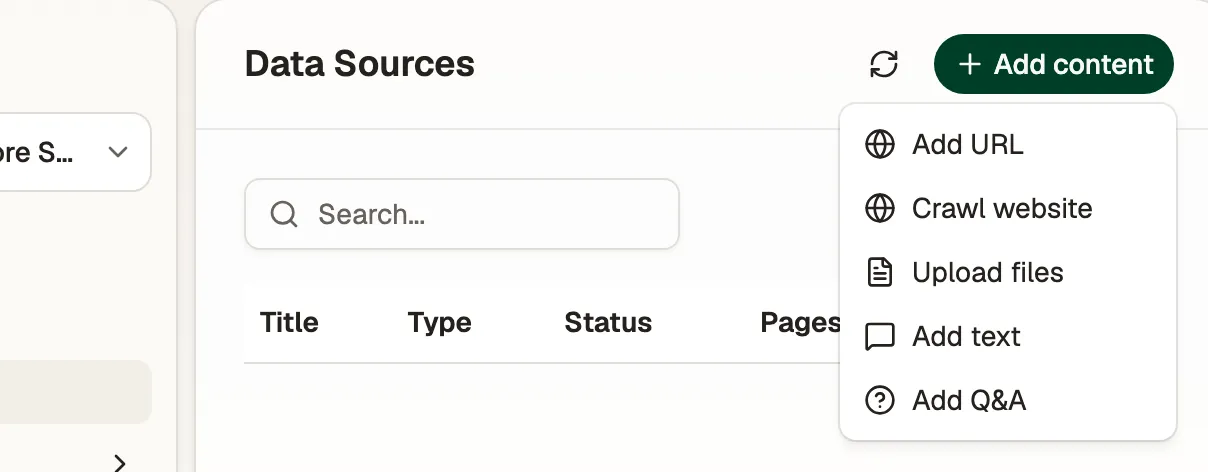
- Add URL or Crawl website to read your site’s pages, such as FAQs, shipping and returns.
- Upload files for PDFs and documents.
- Add text for anything that isn’t written down elsewhere.
- Add Q&A for exact answers to common questions, such as What is your return policy?
Each source shows Pending while Fufa reads it, then Ready. The agent uses a source only once it’s ready.
Give it things to do
Section titled “Give it things to do”Open Tools:
- Actions are built-in things the agent can do, such as looking up an order. Turn on the ones it should use.
- Connectors let the agent call your own HTTP APIs and MCP servers. Select Add connector to add one.
Test it
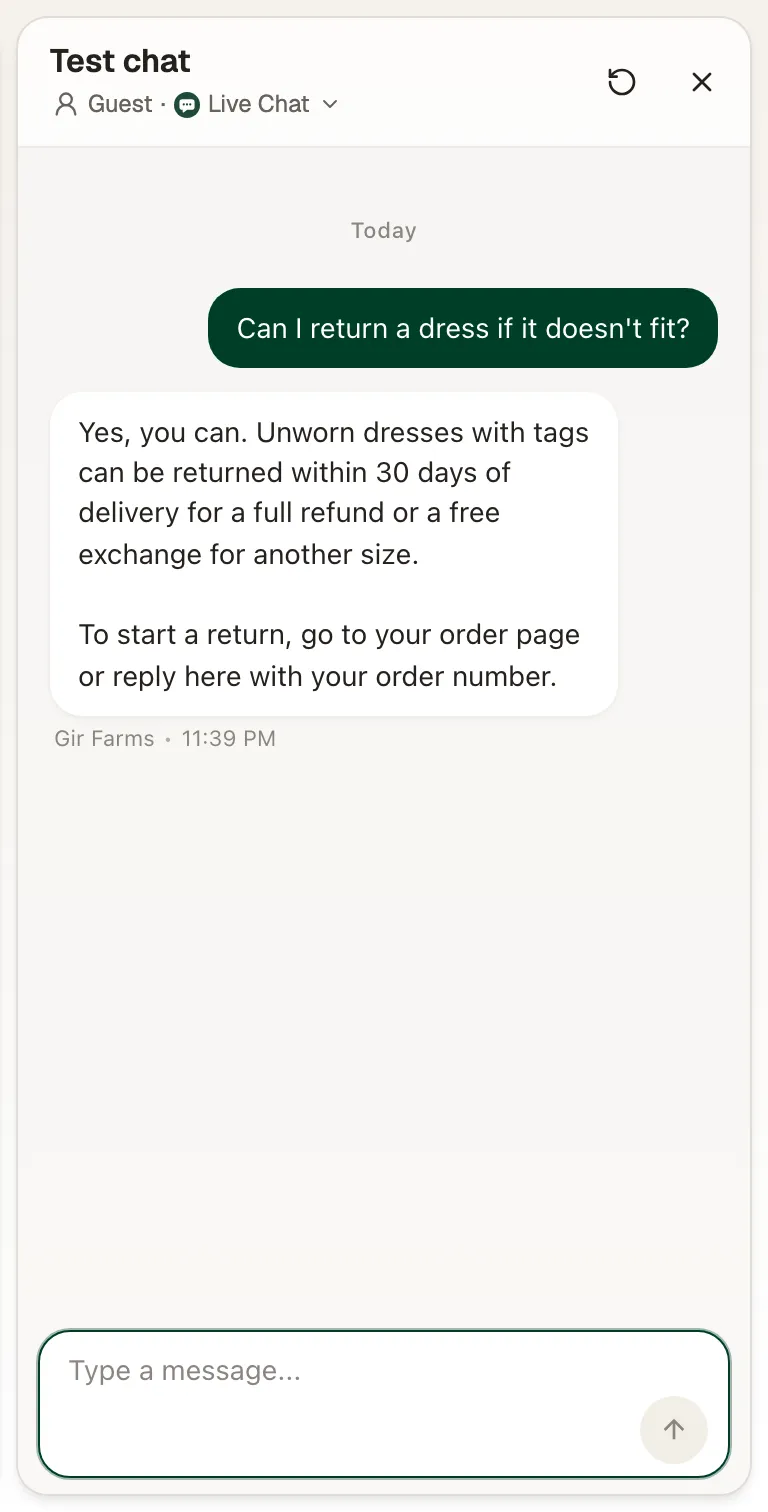
Section titled “Test it”The Test chat sits beside every agent page. Talk to the agent the way a customer would. Select Guest to pick a real contact instead and see answers that use their history and orders. The restart button begins a new test conversation. Nothing in the test chat is sent to customers.
Turn it on
Section titled “Turn it on”Open Deploy:
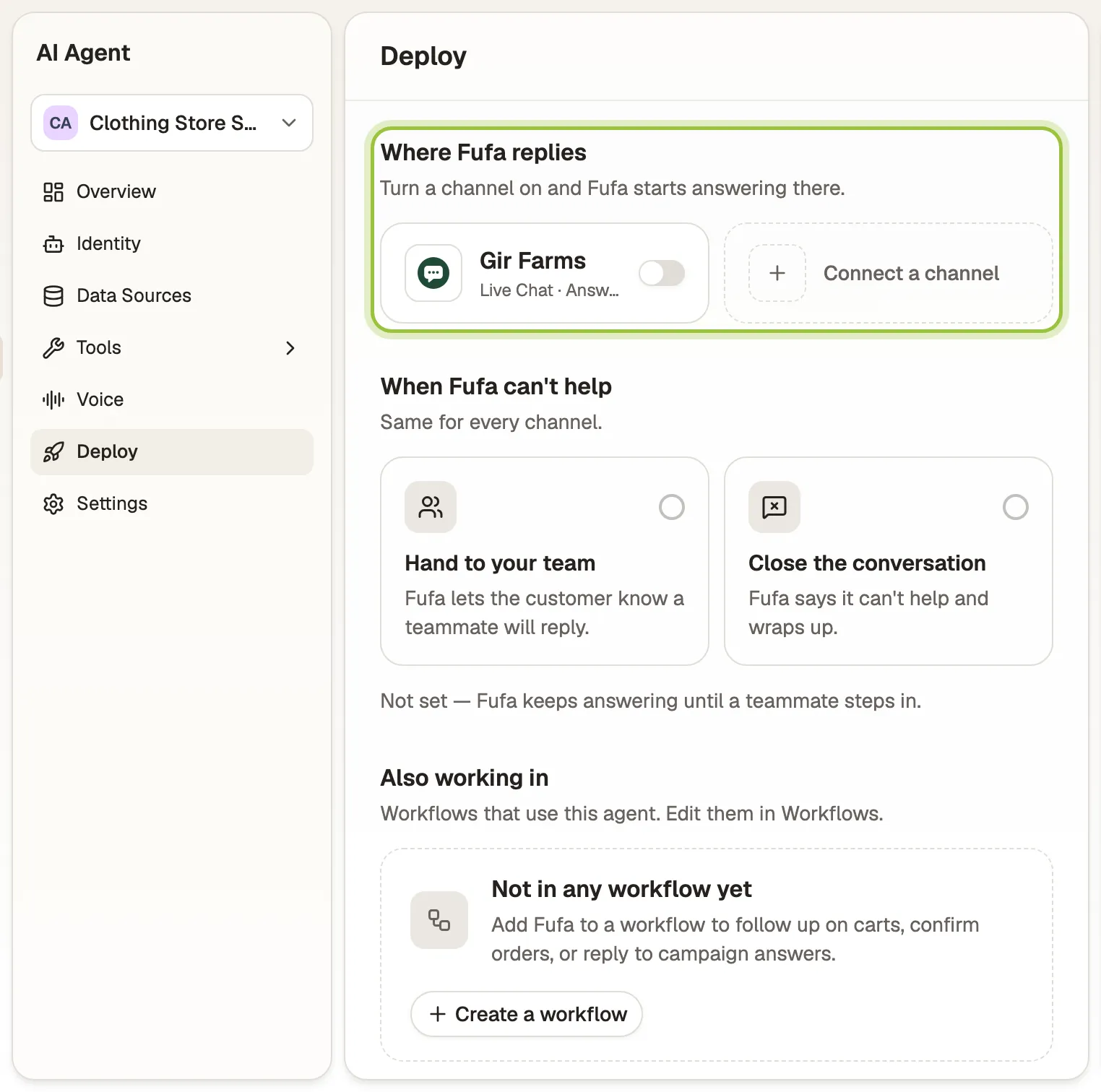
- Under Where Fufa replies, turn on each channel the agent should answer. It starts replying there right away.
- Under When Fufa can’t help, choose Hand to your team or Close the conversation. If you hand over, the agent tells the customer a teammate will reply.
Your team can take over any conversation from the inbox. See Reply from the inbox.
Check it’s working
Section titled “Check it’s working”The agent’s Overview shows conversations, revenue influenced, and Questions Fufa couldn’t answer. Select Add answer on any of those questions to teach the agent for next time.
Common questions
Section titled “Common questions”Does the agent replace my team?
Section titled “Does the agent replace my team?”No. It takes the first reply and the repetitive questions. When it can’t help, it hands over in the inbox, and anyone on your team can take over a conversation at any time.
How do I stop the agent?
Section titled “How do I stop the agent?”Turn its channels off on the Deploy page, or switch off Agent is active under Settings.
Can the agent answer phone calls?
Section titled “Can the agent answer phone calls?”Yes. Turn on Enable voice on the agent’s Voice page, choose a voice, language and greeting, then connect a phone number.
Can I have more than one agent?
Section titled “Can I have more than one agent?”Yes. Create an agent per job, for example one for support and one for sales, and turn each one on for different channels.